Hi @FredEBear,
The tests in the previous post do not require accessing the discovery page. Let’s try this one step at a time.
Preparation
You will need to see the orange status LED easily. It is located just to the right of the button. You may need to uninstall Pixelblaze from your matrix setup in order to see it easily. @GodmanchesterGoblin has a really good point about WiFi signal strength, it might help to have PB uninstalled just to make sure you are getting a good signal and the WiFi isn’t getting blocked by a bunch of wiring in the panel.
Step 1, figure out what mode Pixelblaze is set to
What is the orange LED doing when you apply power to Pixelblaze? A single flash, then solid dim indicates it is NOT in setup mode. If it flashes 3 times, it is in setup mode.
Step 2, configure it in AP mode
We will create a stand-alone network to verify that Pixelblaze is working independent of your router and the internet.
Step 2A, put it in setup mode if it is not already in setup mode.
If it flashes 3 times on power on, it is already in setup mode. If you can see the network “Pixelblaze_00A88D” it is in setup mode.
To enter setup mode, hold the button for 5 seconds and release it. The orange LED will flash 3 times.
Step 2B, connect to the Pixelblaze_00A88D network
If it does not show up immediately, sometimes turning WiFi off and back on again on your computer can help.
Step 2C, load the WiFi Config screen
When you connect to the setup network, your computer should show the configuration screen automatically. Your operating system may display a prompt to “sign in” to the network that will take you to the screen. If it does not, you can open a browser to:
You should see a screen like this:
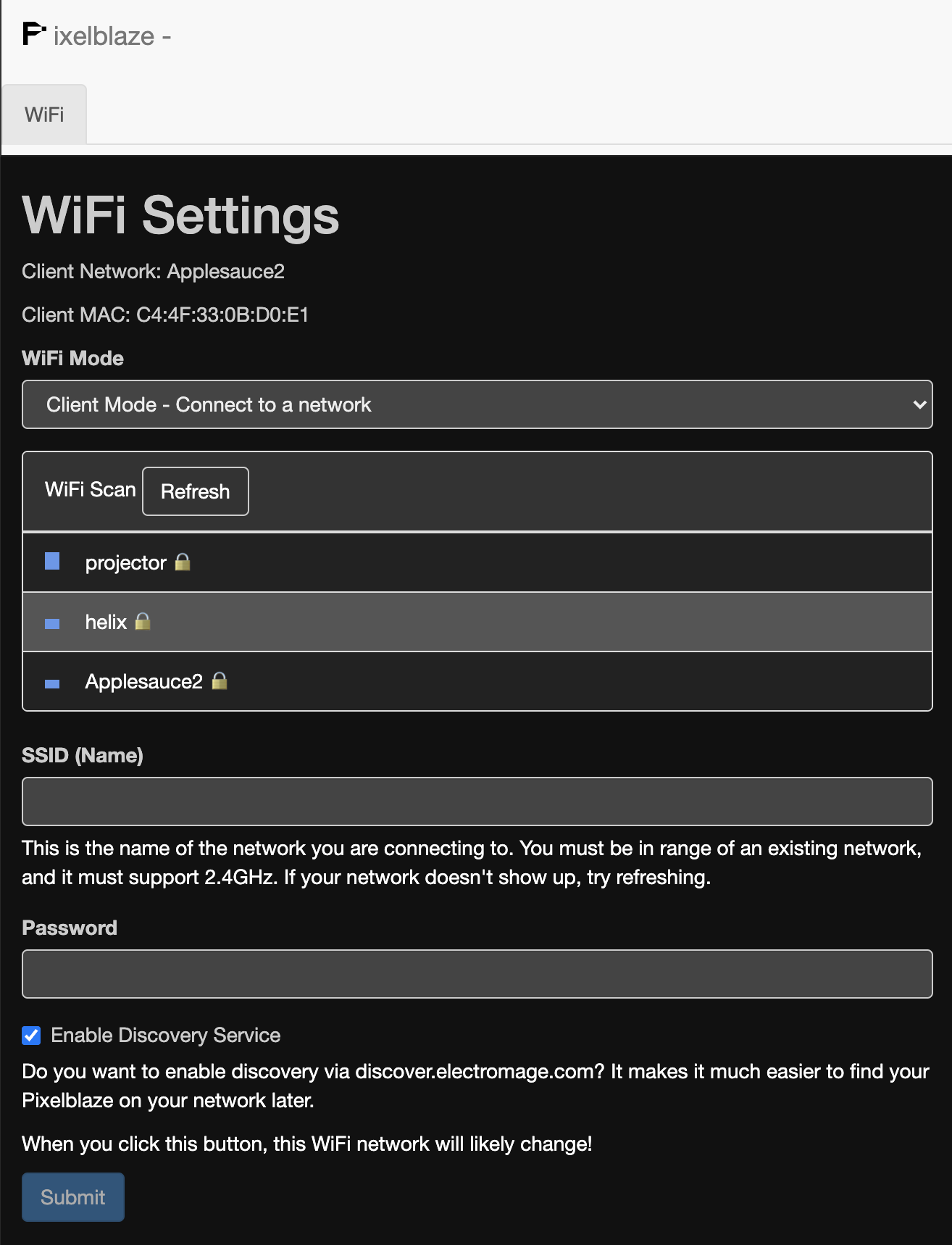
Step 2D, configure AP mode
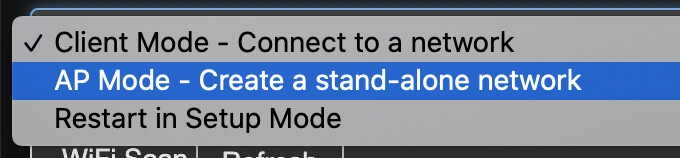
Select AP mode from the WiFi Mode dropdown menu.
For the “SSID (Name)” field, enter “PBTest” and in Password, enter “password” like this:
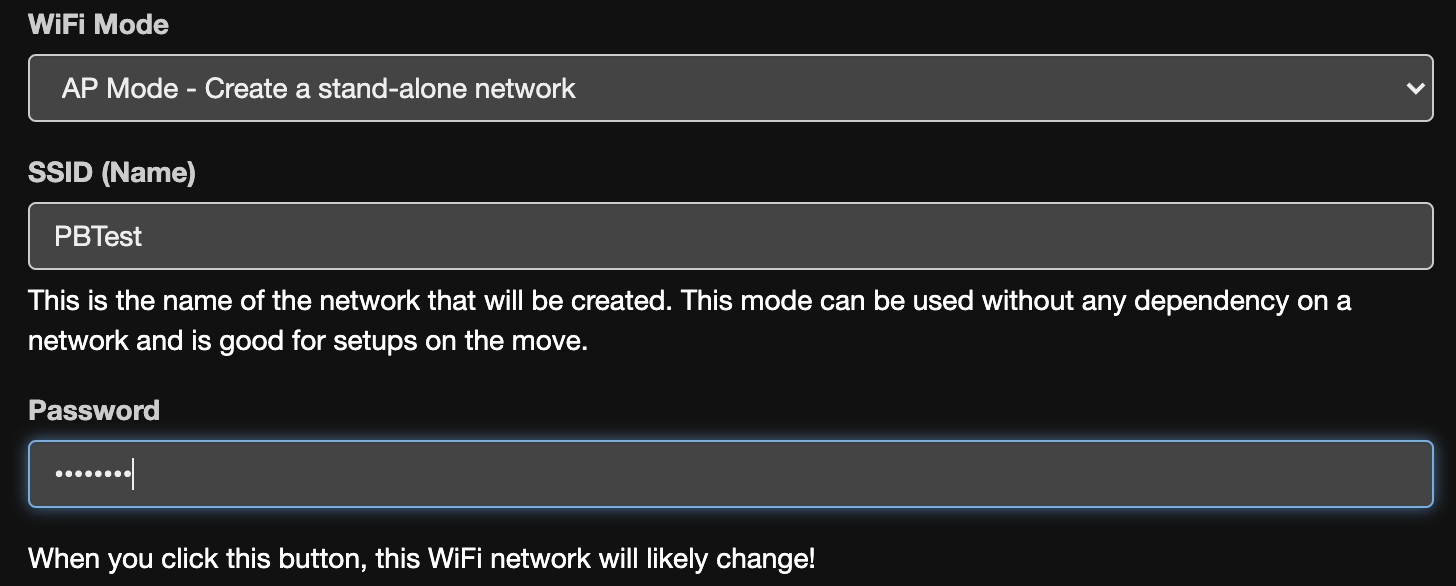
Finally, click the “Submit” button.
In a few seconds, the status text and button should look like this:

You do NOT need to connect to this network just yet. Your Pixelblaze is now in AP mode.
Step 3, verify AP mode is persistent
While watching the orange status LED, power Pixelblaze off for a few seconds, and then back on. What does the orange LED do? It should flash once, then turn on dimly like in this video:
Step 4, connect to the “PBTest” stand-alone network
You should see the “PBTest” network show up on your computer. If it does not show up immediately, sometimes turning WiFi off and back on again on your computer can help.
Connect to the “PBTest” network (the password was “password”).
Once the connection is established, your operating system may prompt that this network is not connected to the internet. That’s OK, this is a stand-alone network. If you see a prompt like that, select the option to remain connected to this network.
In a browser, open this URL:
This will only work while your computer is connected to the PBTest network.
You should see the Pixelblaze Loading cube briefly before the interface loads.
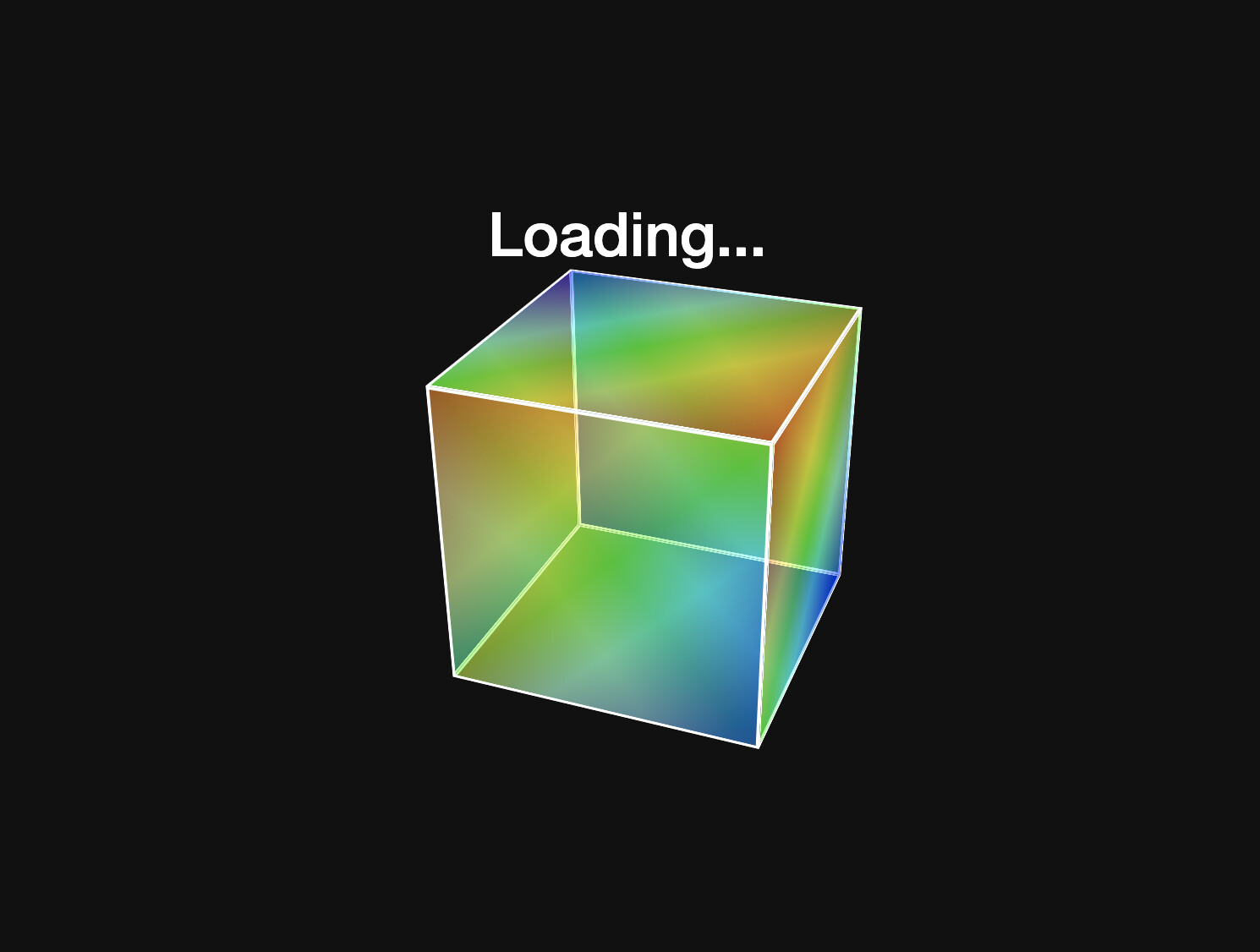
Please let me know in as much detail as possible if you did not get to this point.
If you got this far and the interface loads, then your Pixelblaze seems to be in good working order. You could continue using your Pixelblaze like this, in a stand-alone mode.
After we verify things this far, we can continue troubleshooting connection problems with your network.